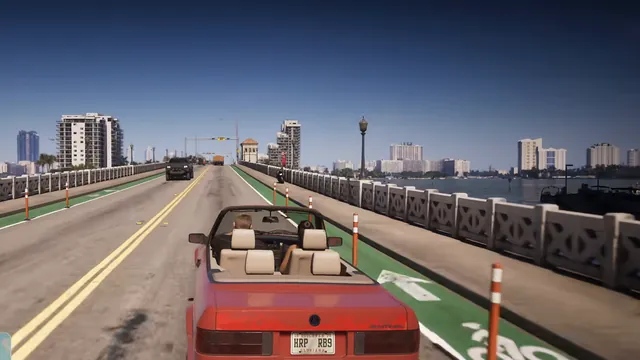
Settings
How to Change the Camera View in GTA 6
Contents
Every way to change the camera
| What you want | PS5 | Xbox | Works |
|---|---|---|---|
| Closer or farther view | Hold D-pad Down, then Square | Hold D-pad Down, then X | On foot and in vehicles |
| Starting height of the camera | Settings > Camera > Height (On Foot) or Height (All Vehicles) | Same | Low, Medium or High, default Medium |
| Camera on one button | Settings > Controller: Touch Pad from Map to Camera | Settings > Controller: View from Map to Camera | One press switches the camera, the map moves to the pause menu |
| Cinematic camera | In a vehicle, hold D-pad Down, then Options | In a vehicle, hold D-pad Down, then Menu | Vehicles |
| Let the game drive | Cinematic camera with a waypoint, then hold Circle | Same, hold B | Vehicles, waypoint needed |
| Close first person look | Hold L2, click R3 | Hold LT, click the right stick | Only standing still |
| Phone in first person | Settings > Camera > Phone Display: First Person | Same | Also while driving |
How to switch between close, medium and far
- Hold Down on the D-pad. The quick controls open.
- Find Camera in the bottom right and press Square (X on Xbox).
- Press again to keep cycling. After the third view you are back at the first.
- Do it once on foot and once in a vehicle. Each has its own view, so set the one you like for both.
If the quick menu feels slow in a chase, put the camera on one button: Settings > Controller, then switch Touch Pad (View on Xbox) from Map to Camera. You then open the map from the pause menu.
Which view to use when
| Situation | View | Why |
|---|---|---|
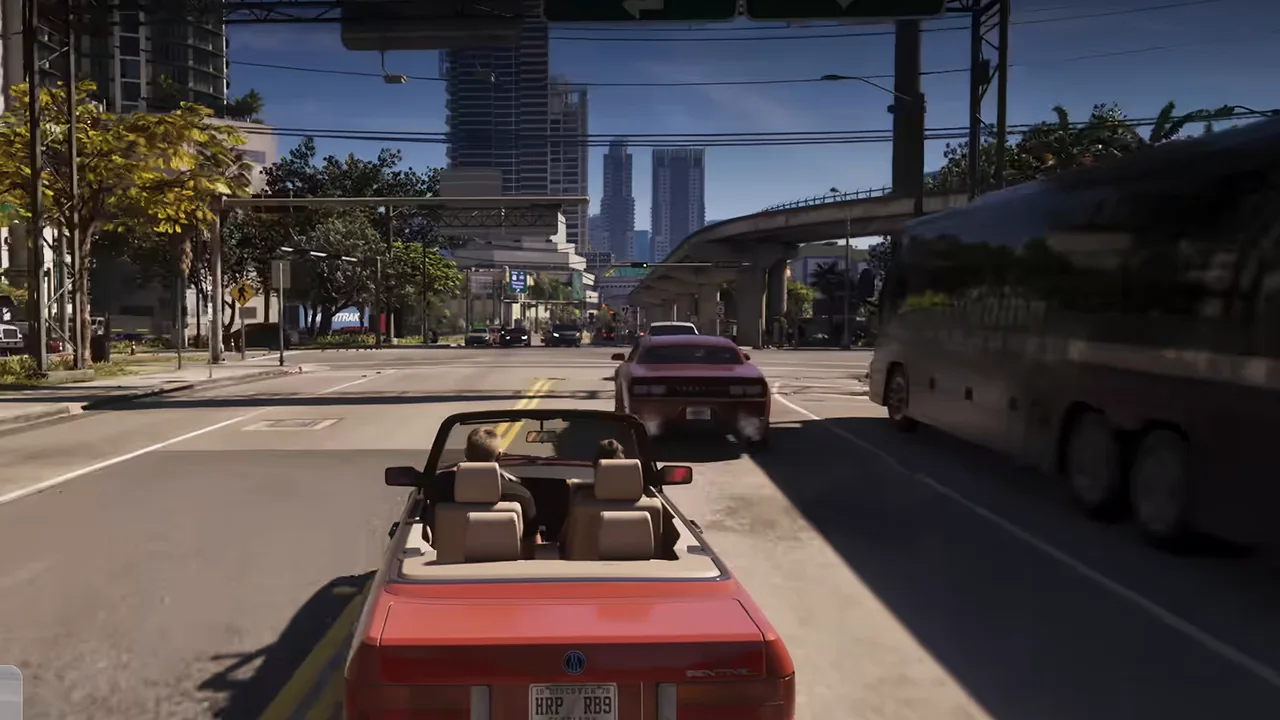
| Fast driving and police chases | Far | You see traffic and turns earlier |
| Narrow streets and parking | Medium | The car doesn’t hide the road in front of you |
| Boats in rough water | Far | Waves throw the camera around less |
| Exploring on foot | Medium or far | More of the street fits on screen |
| Tight interiors and shootouts | Close | Walls get in the way less |
| Scenic drives and clips | Cinematic | Film angles, and the game can drive |
| Motion sickness | Far, plus Camera Shake Off and Camera Bob low | A calmer picture |
Settings > Camera: all 24 options
Open the pause menu, go to Settings and press R1 (RB) until you reach the Camera tab. The tabs are Control Scheme, Controller, Gameplay, Display, UI, Camera, Audio and Account.
| Group | Option | What it does | Our tip |
|---|---|---|---|
| On Foot | Height (On Foot) | Low, Medium or High camera, default Medium | High if you like to see over cars |
| On Foot | Horizontal Follow Speed | How fast the camera swings back behind you sideways, 1 to 10 | Lower it if the camera snaps back too fast |
| On Foot | Vertical Follow Speed | The same up and down, 1 to 10 | Leave it unless it feels jumpy |
| Land & Water Vehicles | Height (All Vehicles) | Low, Medium or High camera for cars, bikes and boats, default Medium | High for chases |
| Land & Water Vehicles | Horizontal Follow Speed (Driver) | How fast the camera swings back behind the vehicle | Lower it to look into corners longer |
| Land & Water Vehicles | Vertical Follow Speed (Driver) | The same up and down | Lower it on bumpy off road tracks |
| Land & Water Vehicles | Follow Delay (Driver) | How long the camera waits before it follows | Raise it if you look around while driving |
| Land & Water Vehicles | Horizontal Follow Speed (Passenger) | Sideways follow speed when you sit next to the driver | Lower for free looking around |
| Land & Water Vehicles | Vertical Follow Speed (Passenger) | The same up and down | Leave it |
| Land & Water Vehicles | Follow Delay (Passenger) | Wait before the camera follows as a passenger | High for sightseeing |
| Comfort | Camera Preferences | Remembers your view separately on foot, in vehicles, on bikes, boats and aircraft | On |
| Comfort | Weapon Sway | Gun drift on screen while aiming | Off if aiming feels floaty |
| Comfort | Camera Shake | Screen shake in action scenes | Off for a steadier picture |
| Comfort | Camera Bob | Up and down movement when walking, running and swimming, 1 to 10, default 10 | 5 or lower if you feel sick |
| Comfort | Phone Display | Default or First Person when you use the phone | First Person for a driver view with the phone out |
| Aircraft | Horizontal Follow Speed | Sideways follow speed in the air | Lower for smoother flying |
| Aircraft | Vertical Follow Speed | The same up and down | Leave it |
| Aircraft | Follow Roll | Tilts the camera with the plane | Off if barrel rolls make you dizzy |
| Aircraft | Follow Roll Speed | How fast the camera tilts | Lower for a calmer horizon |
| Aircraft | Roll Deadzone Range | Inside this range the camera stays level with the horizon | Higher for a steadier horizon |
| Underwater | Horizontal Follow Speed | Follow speed while diving | Leave it |
| Cinematic | Cinematic Kill Shot Frequency | How often some kills play in slow motion, 1 to 5 | Lower it if it breaks your flow |
| Cinematic | Cinematic Vehicle Crash Frequency | The same for some crashes, 1 to 5 | Lower it in races |
| Cinematic | Idle Camera | Switches to cinematic views when you stand idle for a while | Off if you pause a lot without the menu |
Does the camera follow you automatically? Yes, and there is no switch to turn that off. The follow speed and follow delay sliders decide how quickly it swings back. Set them low and you can look around longer before the camera returns behind you.
More first changes for the whole menu, from motion blur to HDR: GTA 6 best settings.
Cinematic camera and Auto Drive
The cinematic camera is the one most players miss. In any vehicle, hold Down on the D-pad and press Options (Menu on Xbox). The camera jumps to film angles around the car: great for a sunset drive or a chase you want to record, but harder to steer, because you don’t always see the road ahead.
Set a waypoint first and you can hold Circle (B) in this camera to let your character drive to it. It follows traffic rules, and L2 / R2 (LT / RT) change the speed. Steps and the faster passenger seat trick: GTA 6 Auto Drive. To leave the cinematic camera, open the quick menu again.
For still pictures with full control of the angle, use Photo Studio instead: GTA 6 photo mode.
First person: what the camera can’t do
There is no first person option in the camera menu. You get a first person view only when you stand still and hold L2 (LT) with a click of the right stick, when you aim through a scope, with the phone set to First Person and in some vehicles. All the ways, including the glitch: GTA 6 first person mode.
Common mistakes
- Looking for the view in the settings. The settings only set the starting height. The fast switch is the quick menu.
- Changing the view only once. On foot and vehicles keep separate views, so switch in both.
- Pressing both sticks. Without L2 that starts Focus mode, not a camera change.
- Steering in the cinematic camera during a mission. It is made for watching, not for tight driving.
FAQ
How do you change the camera view in GTA 6?
Hold Down on the D-pad and press Square (X on Xbox) to cycle through close, medium and far. It works on foot and in vehicles, and each keeps its own view.
How do you get the cinematic camera in GTA 6?
In a vehicle, hold Down on the D-pad and press Options (Menu on Xbox). With a waypoint set you can then hold Circle (B) to let the game drive.
Can you change the camera height in GTA 6?
Yes. Settings > Camera has Height (On Foot) and Height (All Vehicles), each Low, Medium or High. Medium is the default.
Can you stop the camera from following you in GTA 6?
Not completely. Lower the follow speed sliders and raise the follow delay in Settings > Camera, and the camera waits longer before it swings back behind you.
Is there first person in GTA 6?
Not as a full mode. You can look, aim and use the phone in first person, and some vehicles have a first person view.
Something not right? Report a mistake